You can make a Blooket game in about ten minutes with a free account and no coding at all. The trick is to understand what a Blooket game really is. You do not build a game the way a developer builds one. You build a question set first and then you turn that set into a game by picking a mode and hosting it. Once you see the two parts clearly, the whole process feels simple.
This guide shows you how to make a Blooket game from scratch, step by step. You will create your account, open the Set Creator, write your questions, choose a game mode and host your first game. You will also learn the four ways to build a set, the mistakes that trip up new creators and the answers to the questions people ask most. Every step follows Blooket’s own Help Center. By the end you will know how to make a Blooket game from your first question to your first live round.
What “Make a Blooket Game” Actually Means
A Blooket game has two parts and you build them in order. The first part is a question set. A question set is a list of questions and answers about one topic, like fractions, the water cycle or Spanish verbs. The second part is a game mode. A game mode is the game that wraps around your questions, like Gold Quest, Tower Defense, Fishing Frenzy or Café. When you host, Blooket takes your questions and drops them into the mode you picked.
That split matters because it changes how you plan. You do not need a different set for every mode. One good set can power many games. Build a strong set once and you can run it as Gold Quest on Monday, Tower Defense on Wednesday and homework on Friday. The set is your content and the mode is the fun around it. That is how to make a Blooket game in the simplest sense: a set plus a mode.
It also matters because it tells you where to start. New users often open Blooket looking for a “make game” button and feel lost. There is no single button with that label. You start with the Set Creator on your dashboard and you build a question set. The game comes after.
What You Need Before You Start
You need three things before you learn how to make a Blooket game. You probably have all of them already. First, you need a free Blooket account. Sign up at blooket.com with an email address or a Google account. The sign-up takes under a minute and the free Starter plan never expires. You need the account because only signed-in users can create sets and host games. Students who only want to play do not need an account at all. They join with a game code and a nickname.
Second, you need a topic and some questions. Pick one topic for one set. A set about “Grade 5 science” is too wide and a set about “the water cycle” is just right. Write your questions before you open the creator if you can. Aim for at least ten questions for a first game. You will read why in the section on set size.
Third, you need a device with a web browser and an internet connection. Blooket runs in the browser on a laptop, a Chromebook, a tablet or a phone. You do not need to download an app to create a set. A laptop or Chromebook is the easiest place to type a full set.
Step 1: Open Set Creator on Your Dashboard
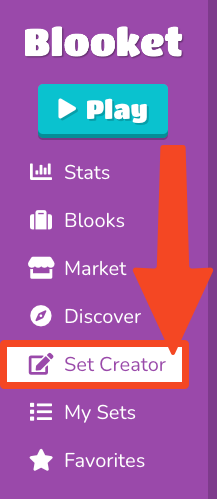
Sign in and look at the left sidebar on your dashboard. You will see menu items like Play, Stats, Blooks, Market, Discover, Set Creator, My Sets and Favorites. Click Set Creator. This is the first click in how to make a Blooket game. It takes you straight to the creator page.
Blooket’s Help Center calls this same button “Create” in its written guide. Do not worry if the label looks different from a tutorial you read elsewhere. The sidebar says Set Creator and the Help Center says Create. They open the same page.
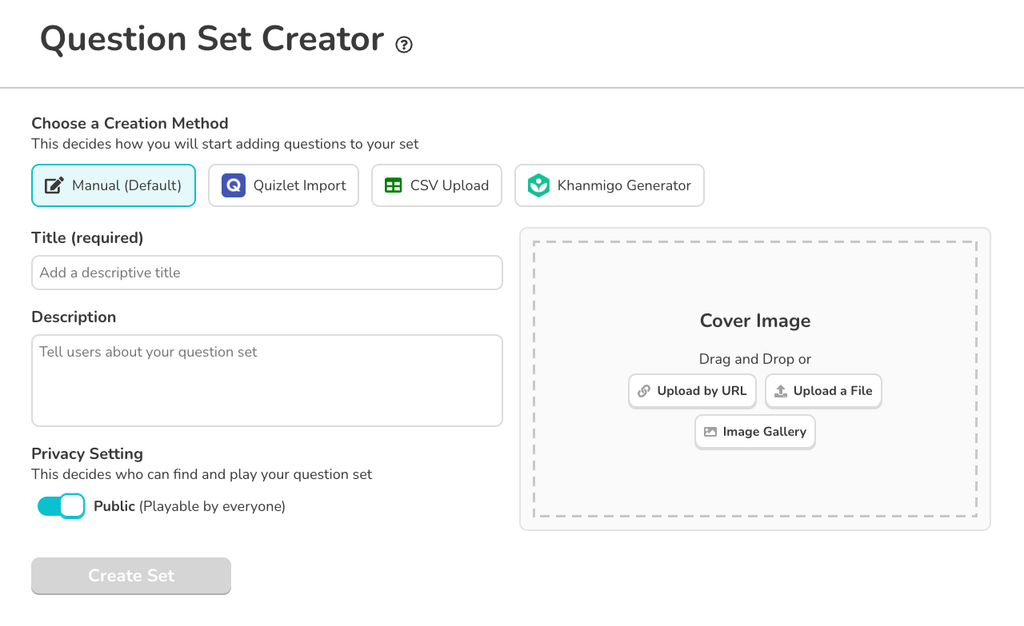
Take a second to look around the creator page before you type anything. You will see four creation methods at the top, a title field, a description field, a cover image area and a privacy setting. The page walks you through them in order and you can change them later.
Step 2: Give Your Set a Title and Pick Public or Private
The first thing the creator asks for is a title and it is required. Blooket’s own tip is to use descriptive terms like the grade level and the topic. That tip is worth following. “Fractions” is a weak title. “Grade 4 Fractions: Add and Subtract” is a strong one. A clear title helps you find the set later and helps other teachers find it in Discover if you make it public.
Next, add a short description. Tell people what the set covers in one or two sentences. “Twenty questions on adding and subtracting fractions with like denominators, for Grade 4 review” says everything a teacher needs to know. Skip the description and your set looks unfinished to anyone who finds it.
You can also add a cover image if you like. It is optional and it helps you and other users spot the set at a glance. Drag an image into the cover area, upload one by URL or pick one from the image gallery. A simple image that matches the topic works best.
Then decide the privacy setting. Public is the default. A public set can be discovered by other users and you can share a link to it with teachers, parents and other users. A private set is only visible to you. You can still use it to host live games. Choose public when you want to share your work with the community and private when the set is only for your class or still a draft. You can change this setting after the set is created.
When the title, description and privacy look right, click Create Set. Blooket saves the set and moves you to the question editor. Your set now exists and it is ready for questions.
Step 3: Add Your Questions and Mark the Right Answers
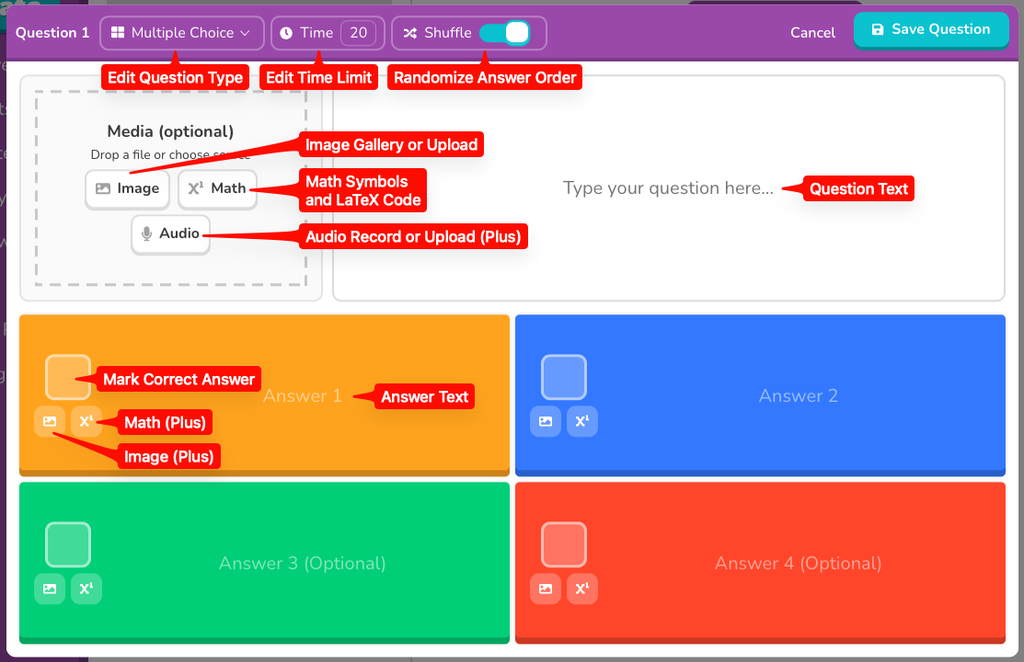
This is the heart of making a Blooket game. Click Add Question and the question editor opens. Type your question in the big text box. Then type your answers in the four colored answer boxes. Answer 1 and Answer 2 are required. Answer 3 and Answer 4 are optional. Leave them blank when a question only needs two choices.
Now mark the correct answer. Click the checkbox on the correct answer box before you save. This is the step new creators rush and regret. Blooket scores players against the answer you marked. A wrong mark means a right answer counts as wrong in the game. Check every question once before you move on.
The editor gives you a few controls worth knowing. The question type dropdown lets you switch between multiple choice and typed answers. The time control sets how long players get for that question. The shuffle toggle randomizes the answer order so the correct answer does not sit in the same spot every time. You can also add media to a question, like an image, or use math symbols and LaTeX code for equations. Audio questions are a Plus feature. So are images and math inside the answer boxes. The free plan covers question images while the fancier answer extras need an upgrade.
True or false questions need a small trick. Put “True” in Answer 1 and “False” in Answer 2 and leave Answer 3 and Answer 4 blank. Then uncheck the Random Order box for that question. Blooket’s Help Center recommends exactly that, because shuffling a true or false question moves the two answers around and confuses players.
When the question looks right, click Save Question in the top right of the question box. Then click Add Question again and repeat the process. Build your set one question at a time and save each one before you move to the next. That repetition is the core of how to make a Blooket game: one good question at a time. A set grows fast this way and ten questions take less time than you think.
Four Ways to Build a Set
Typing every question by hand is the default method. It is not the only one. The creator page offers four creation methods and each one fits a different situation. Every method below answers the same question: how to make a Blooket game with the material you already have.
| Method | How it works | Best for |
| Manual (Default) | Type each question and answer directly in the creator | A brand new set or a small set you write from scratch |
| Quizlet Import | Pull a set in from Quizlet with a link | Teachers who already have Quizlet sets |
| CSV Upload | Upload a spreadsheet of questions in Blooket’s template format | Large sets built in Excel or Google Sheets |
| Khanmigo Generator | Let Khan Academy’s AI draft questions from a topic | A fast first draft when you have a topic but no questions yet |
Manual creation gives you the most control. You write every word and you check every answer as you go. Use it for sets that matter, like a test review or a set you plan to share publicly.
Quizlet Import is the fastest path when your questions already exist somewhere else. Paste the Quizlet link and Blooket pulls the questions in. You still need to review the answers after the import, because a bad import can flip a correct answer.
CSV Upload suits big sets. Blooket provides a template where each row is one question with its answers. Fill the sheet, upload it and the whole set appears at once. It takes a little setup the first time and then it saves hours on large question banks.
Khanmigo Generator is the AI option. Give it a topic and it drafts questions for you. It is free for verified educators. Treat its output as a first draft, not a finished set. Read every question, fix the weak ones and check every marked answer before you host.
How Many Questions Should Your Set Have?
Blooket does not publish a minimum or maximum size for a question set. There is no official number to hit. In practice, ten questions is a good floor for a live game. With fewer than ten, players see the same questions again and again and the game feels repetitive. With ten or more, the game has enough variety to stay fresh through a full round.
For a longer game or a homework assignment, aim higher. Twenty to thirty questions gives a homework set real range and keeps a long live game from looping. For a quick drill or a warm-up, five to eight questions can work fine.
Mix the difficulty too. Start with two or three easy questions so players settle in, then build toward harder ones. A set that is all hard questions frustrates players and a set that is all easy questions bores them. A gentle ramp keeps everyone in the game.
Keep the set focused on one topic as well. A set that jumps from fractions to the water cycle to Spanish verbs confuses players and makes the game feel random. One topic, one set. If you have three topics, make three sets.
Step 4: Pick a Game Mode and Play Your Game
Your set is ready. Now you turn it into a game. Open the set from My Sets or find it in Discover, then click Host. Our Blooket Host guide covers the hosting screen in detail. Blooket shows you the game modes and you pick one. Gold Quest and Tower Defense are great first choices because they are easy to explain and players love them. Fishing Frenzy and Café work well too when you want a slower, calmer game.
Set the game options Blooket offers, like the time limit or the win condition and then click Host Now. Blooket gives you a game code and a QR code. That code is the finish line for how to make a Blooket game. Share it with your players and they join at play.blooket.com with a nickname. Our Blooket Play guide shows the joining side step by step. No account is needed to join a live game.
You can also play the set on your own first. Open the set and choose Solo to test it in a single-player mode before you host it for a class. A solo run shows you whether the questions read clearly and whether the timing feels right. Our solo game guide shows which modes work best on your own. If something feels off, go back to My Sets, edit the set and fix it before the real game.
Homework is the third way to play a set. Assign it from the set menu and students complete it on their own time. The free plan allows homework deadlines up to 14 days ahead and Plus extends that to 365 days. Homework suits review work that does not need a live room.
5 Mistakes to Avoid When You Make a Blooket Game
Most bad Blooket games fail for the same five reasons and all five are easy to prevent. Every item on this list is a mistake people make when they first learn how to make a Blooket game.
First, too few questions. A set with four questions repeats itself within a minute and players stop trying. Build at least ten questions before you host.
Second, a vague title. A set called “Quiz 1” tells nobody anything. Use the grade and the topic in the title so you and other teachers can find it later.
Third, a wrong correct answer. This is the most damaging mistake because it punishes players for knowing the material. Check the marked answer on every question before you host. A two-minute review saves a ruined game.
Fourth, true or false questions with Random Order left on. Shuffling moves True and False around and players click the wrong spot by accident. Uncheck Random Order on every true or false question.
Fifth, publishing a public set before you review it. Typos, broken questions and wrong answers all become public the moment you share a set. Read the whole set once, play it solo once and then share it. The solo test catches problems your eyes miss.
Frequently Asked Questions
Do I need a Blooket account to make a game?
Yes. You need a free Blooket account to create question sets and host games. Sign up at blooket.com with an email address or a Google account. The free Starter plan covers set creation and hosting with no time limit. Students who only join a game need no account. They enter the game code at play.blooket.com and play as guests.
Is it free to make a Blooket game?
Yes. Making a Blooket game is free on the Starter plan. You can create unlimited question sets and host live games for up to 60 players without paying anything. Blooket Plus adds extra features like more players, extra game modes and audio questions. The core creation tools cost nothing. Our guide on whether Blooket is free explains the full Starter versus Plus split.
How many questions can I add to a set?
Blooket does not publish a maximum size for a question set. In practice, most teachers build sets of 10 to 50 questions. Ten questions is a good floor for a live game and 20 to 30 questions suits homework or a longer session. A focused set on one topic plays better than a giant mixed set.
Can students make their own Blooket games?
Yes. Any user with a free Blooket account can create question sets and host games, including students. A student can build a set for a class project, host it for friends or play it solo. The same steps apply. Create the set, add the questions, pick a mode and share the code.
Can I use someone else’s question set?
Yes. Use Discover to search the public library of more than 20 million question sets built by other users. You can host any public set for free. If you want to edit your own copy of someone else’s set, that copy and duplicate feature is part of Blooket Plus. You can also favorite sets you like so they stay easy to find.
Can I add images to my questions?
Yes. You can add an image to a question on the free plan through the media button in the question editor. You can also use math symbols and LaTeX code in questions. Audio questions need Blooket Plus. So do images and math inside the answer boxes. If you only need a picture with the question itself, the free plan covers you.
What is the best game mode for a first game?
Gold Quest is a great first mode because the rules take seconds to explain and every player stays involved. Tower Defense is another strong first choice for groups that like strategy. Pick the one your players will enjoy most. You can try a different mode with the same set next time.
Can I edit my set after I make it?
Yes. Open My Sets on your dashboard, find the set and edit it any time. You can change the title, the description, the cover image, the privacy setting and any question. Your changes apply to future games right away. You can also copy a set, share it or delete it from the same menu.
Conclusion
Learning how to make a Blooket game comes down to two steps. Build a question set and then turn it into a game with a mode. Open Set Creator, write a clear title, add your questions one by one and mark the correct answers with care. Test your set solo first and you will catch the typos and wrong answers before your players do. Now you know how to make a Blooket game from start to finish. Start with one set on one topic today and you will have a game your class asks to play again.